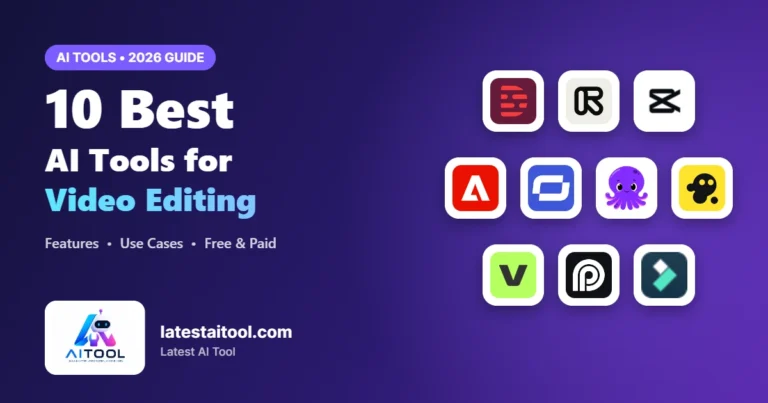
10 Best AI Video Editing Tools 2026 (Free & Paid Compared)

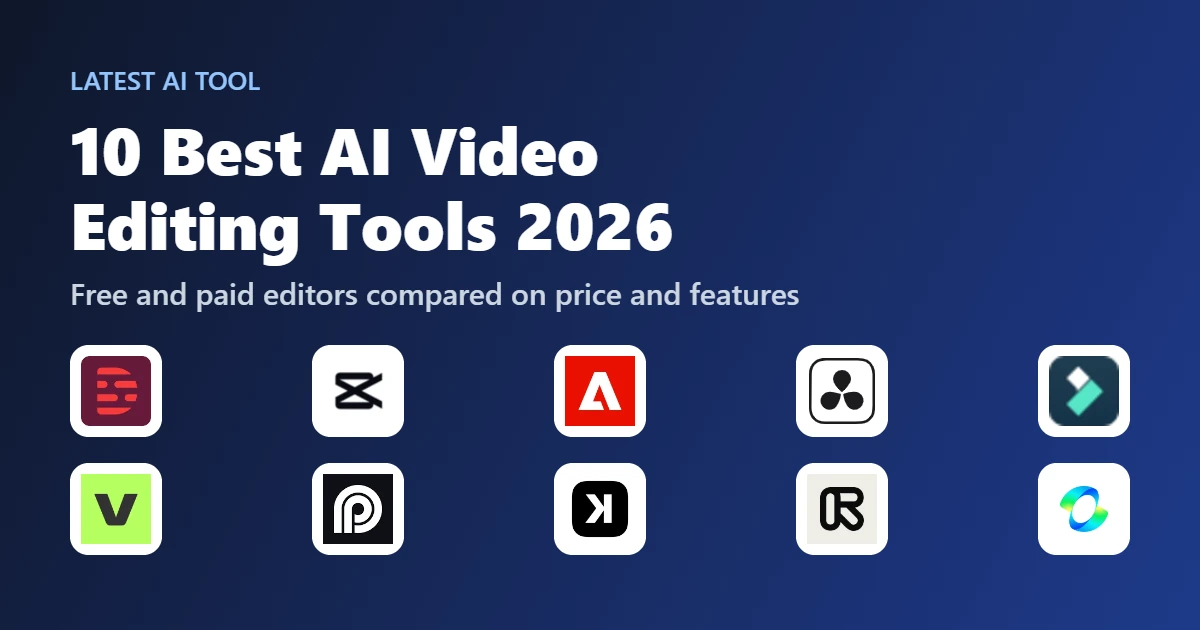
Finding the right AI video editing tool is harder than it should be, because the label now covers everything from transcript editors to clip generators. At Latest AI Tool, we track these products so you can compare them without opening twenty pricing pages. This guide covers ten editors worth your attention in 2026, what each one does well, where it falls short, and what it costs.
The biggest question is not which tool is best overall. It is which job you need done. A podcaster, a TikTok creator and a film colorist need very different software. If you want a wider view of the category, our earlier list of AI tools for video editing also covers avatar and text-to-video platforms such as Synthesia and InVideo.
AI Video Editing Statistics for 2026
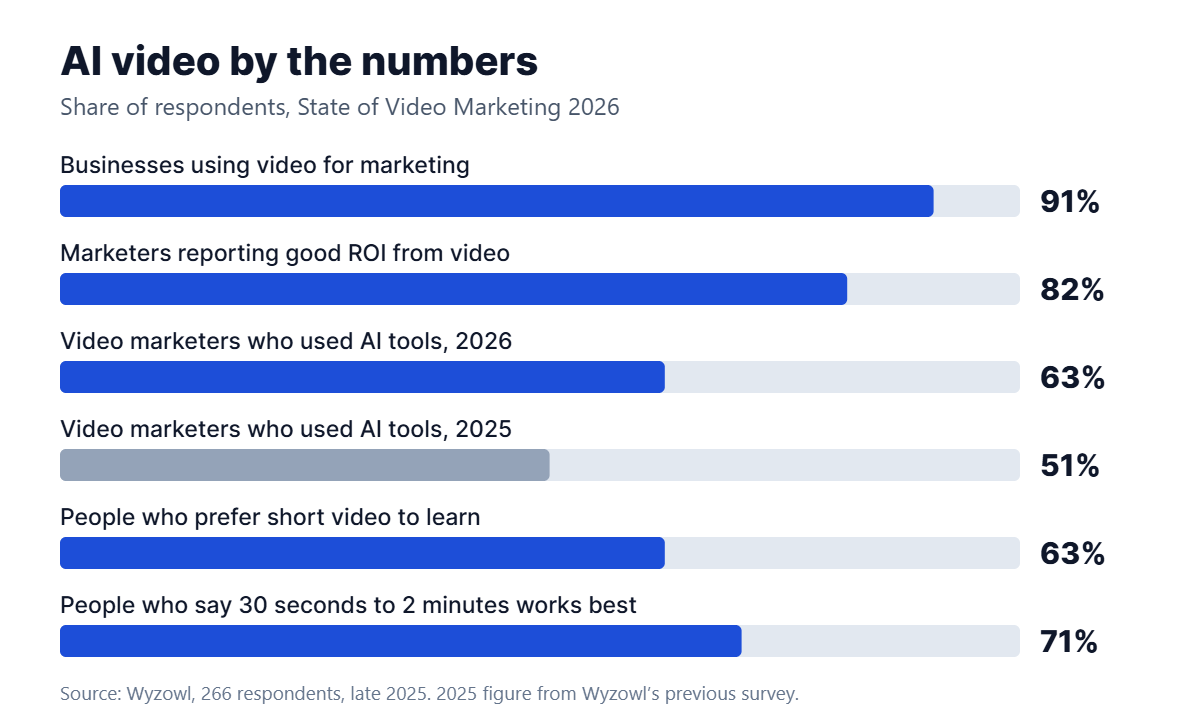
Video editors with AI are no longer a niche purchase. Wyzowl’s State of Video Marketing 2026 surveyed 266 marketers and consumers in late 2025, and the numbers show how quickly habits changed:
- 91% of businesses use video as a marketing tool.
- 63% of video marketers have used AI tools to create or edit marketing videos, up from 51% a year earlier.
- 82% of marketers say video has given them a good return on investment.
- 63% of people would most like to watch a short video when learning about a product.
- 71% believe videos between 30 seconds and 2 minutes are most effective.
Market forecasts point the same way. Virtue Market Research values AI video editing tools at $1.6 billion and projects $9.3 billion by 2030, a 42.19% compound annual growth rate. Treat that as one firm’s estimate rather than a settled figure, since market reports often vary widely.
Best AI Video Editing Tools 2026: Quick Comparison
Prices below are the lowest paid rate we could confirm in November 2026, and many require annual billing. Regional pricing, taxes and promotions can change what you pay, so check the checkout page before you buy.
| Tool | Best for | Free option | Paid from |
|---|---|---|---|
| Descript | Podcasts and talking-head video | Yes, 720p with limits | $12/mo billed yearly |
| CapCut | Free social video | Yes | $19.99/mo (reference price) |
| Adobe Premiere | Professional editing | 7-day trial, free mobile app | $22.99/mo first year |
| DaVinci Resolve | Color and finishing | Yes, up to Ultra HD | $236 one-time (list $295) |
| Filmora | Budget desktop editing | Yes, with watermark | $59.99/yr Advanced |
| VEED | Browser edits and subtitles | Yes, with watermark | About €11/mo billed yearly |
| Opus Clip | Long video into shorts | Yes, 60 credits a month | $14.50/mo billed yearly |
| Klap | Automatic social clips | Free trial | $14/mo billed yearly |
| Runway | Generated footage and VFX | 125 one-time credits | $12/mo billed yearly |
| Kling AI | Clips from text or images | Daily credits, watermarked | $10/mo list price |
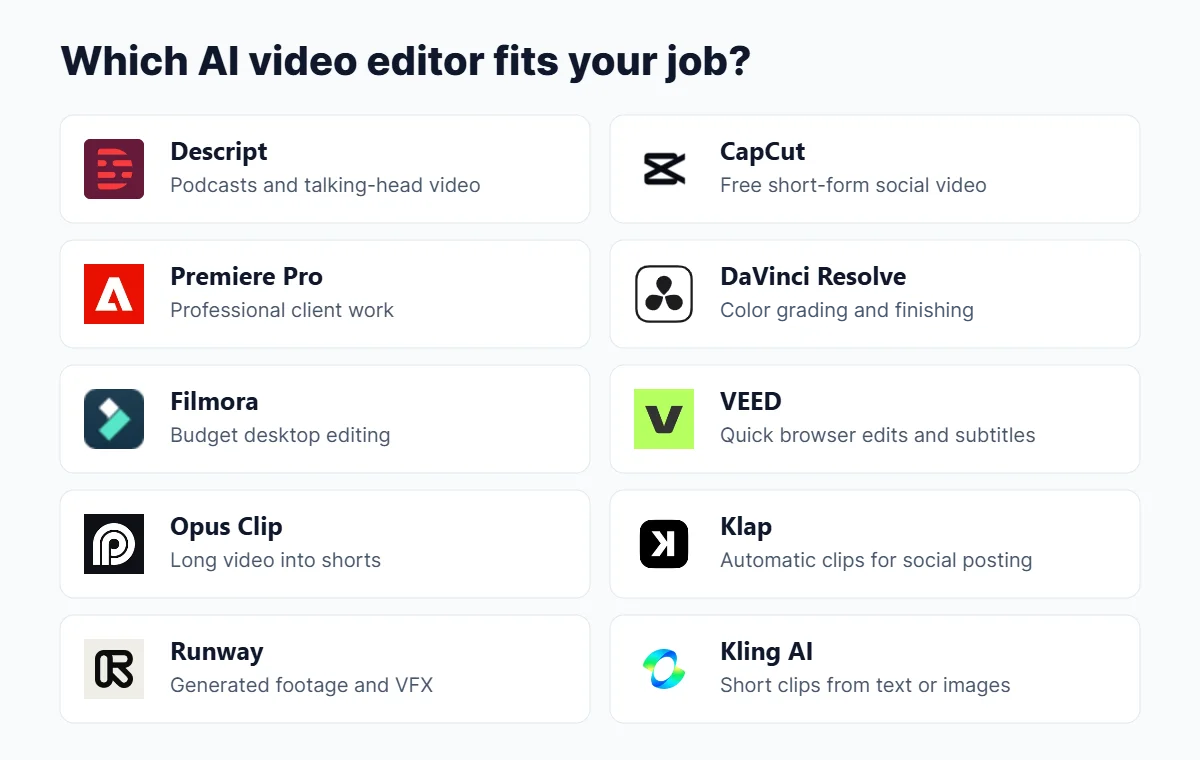
 Descript: Best for Editing Video Like a Document
Descript turns your recording into a transcript, then lets you cut video by deleting words. That sounds like a gimmick until you edit a one-hour interview and realize you barely touched the timeline. Filler word removal and Studio Sound handle much of the cleanup that usually eats an afternoon.
The free plan is enough to judge the workflow, but its one watermark-free export a month and 720p limit will not carry a real publishing schedule.
Best for: podcasters, course creators and anyone editing speech-heavy video.
Pricing: Free plan available. Creator costs $15 a month or $12 billed yearly, and Pro costs $30 a month or $24 billed yearly.
Pros
- Very fast for dialogue editing
- 4K export on paid plans
- Transcription built into every plan
Cons
- Less suited to visual, music-driven edits
- Transcription hours are capped by plan
Visit Descript.
 CapCut: Best Free AI Video Editor for Social Media
CapCut is the shortest path from phone footage to a finished Reel or TikTok. Auto captions, templates and effects are the draw, and the free plan goes further than most competitors in this list.
It gets awkward on longer projects, and more of the advanced features now sit behind Pro. It is an excellent short-form tool rather than a full replacement for a desktop editor.
Best for: creators publishing short vertical video on a small budget.
Pricing: Free plan available. CapCut lists Pro at $19.99 a month as a reference price, and the final price depends on your account and region.
Pros
- Generous free tier
- Large template library
- Works on phone and desktop
Cons
- Weak for long-form editing
- Some features and exports push you toward Pro
Visit CapCut.
 Adobe Premiere: Best for Professional Editors
Premiere remains a standard in professional post-production, and its AI features slot into that existing workflow. Text-Based Editing, Enhance Speech, Object Mask and Generative Extend all save real time, particularly when a clip runs a few frames short.
These tools speed up someone who already knows how to edit. They do not make the software simple, so beginners should expect a learning curve.
Best for: professional editors and agencies already working in Adobe.
Pricing: $22.99 a month for new subscribers in the first year, with a 7-day free trial. The single-app plan includes 25 generative credits a month, and a free Premiere mobile app is also available.
Pros
- Deep professional toolset
- Strong AI audio and masking features
- Fits Creative Cloud workflows
Cons
- Steep learning curve
- Few generative credits on the single-app plan
Visit Adobe Premiere.
 DaVinci Resolve: Best for Color Grading and Finishing
DaVinci Resolve is the unusual case of a serious professional suite with a free version. You can edit and finish at up to Ultra HD and 60 fps, and you get extensive color tools without paying anything.
The catch for this list is that the Neural Engine features, including Magic Mask, Smart Reframe, object removal and Super Scale, are exclusive to the paid Studio version. The good news is that Studio is a one-time purchase rather than a subscription.
Best for: filmmakers and colorists who want professional control and hate subscriptions.
Pricing: Free version available. Studio is listed at $236, marked down from $295, as a one-time payment.
Pros
- Excellent free version
- No subscription for Studio
- Industry-grade color tools
Cons
- Hard for beginners
- Best AI features require Studio
Visit DaVinci Resolve.
 Wondershare Filmora: Best for Budget Desktop Editing
Filmora sits between CapCut and Premiere. You get a traditional timeline that is easier to learn, along with AI helpers such as smart cutout, audio denoise and text-based editing.
Look closely at the AI credits before buying. Advanced includes 1,000 credits a month, while the Basic and Perpetual plans handle AI features differently, and the Perpetual license is tied to a single platform.
Best for: YouTubers and small businesses moving up from mobile editors.
Pricing: Free version with a watermark. Advanced costs $59.99 a year, and Filmora advertises a 30-day money-back guarantee.
Pros
- Easy to learn
- Low annual cost
- 4K export on paid plans
Cons
- AI features run on credits
- Less depth than professional suites
Visit Wondershare Filmora.
 VEED: Best for Quick Browser Edits and Subtitles
VEED runs in a browser, so there is nothing to install and teammates can get started quickly. Subtitles and translation are its strongest features, which makes it practical for marketing clips that need to reach more than one language.
Plans are billed per seat, and translation minutes and AI credits do not roll over. Teams should work out those costs before committing.
Best for: marketing teams making short clips and subtitled video.
Pricing: Free plan with a watermark. A pricing tracker showed Creator at about €11 a month billed yearly in October 2026. Check VEED directly for your local price.
Pros
- Nothing to install
- Unlimited subtitles on paid plans, within fair use
- Simple to learn
Cons
- Per-seat billing adds up
- Unused translation minutes and credits expire
Visit VEED.
 Opus Clip: Best for Turning Long Videos into Shorts
Opus Clip does one job: it pulls short vertical clips from a long recording, adds captions and reframes the speaker. If you already record podcasts or webinars, it can turn one session into weeks of social content.
It works best alongside a main editor, since it is built for repurposing rather than editing your primary video. The free plan is for testing only, with watermarks and clips that cannot be exported after three days.
Best for: podcasters, coaches and webinar hosts repurposing long content.
Pricing: Free plan with 60 credits a month. Starter costs $15 a month, and Pro costs $29 a month or $14.50 billed yearly.
Pros
- Fast repurposing
- AI captions with keyword highlighting
- Auto reframe included
Cons
- Not a full editor
- Credits limit how much you can process
Visit Opus Clip.
 Klap: Best for Automatic Social Clips
Klap is a focused alternative to Opus Clip. It turns longer video into short clips and connects to TikTok, Instagram and LinkedIn accounts, with analytics included on every plan.
Its pricing is built around clips generated, which makes budgeting simple if you publish on a steady schedule. Readers can use code SANA to get 30% off their first payment.
Best for: creators and small teams who want a simple clipping workflow.
Pricing: Basic costs $14 a month for 100 clips, Pro costs $39 for 300 clips and Pro+ costs $94 for 1,000 clips, all billed yearly.
Pros
- Simple pricing by clip count
- Unlimited connected social accounts
- REST API available
Cons
- Limited to clipping, not full editing
- Lowest prices require annual billing
Visit Klap.
 Runway: Best for Generated Footage and VFX
Runway is closer to a creative lab than a standard editor. It generates footage from text or images and offers AI effects, so it is useful when you need a shot you never filmed.
Most people will pair it with one of the editors above, because it does not replace a timeline tool for assembling a full video. Credits also go quickly when you experiment.
Best for: creative teams making B-roll, concept visuals and effects.
Pricing: Free plan with 125 one-time credits. Standard costs $15 a month or $12 billed yearly, and Pro costs $35 a month or $28 billed yearly.
Pros
- Strong generative video tools
- Useful for shots you cannot film
- Free credits to test
Cons
- Not a primary editor
- Credit use can be hard to predict
Visit Runway.
 Kling AI: Best for Short Clips from Text or Images
Kling AI creates short clips with native audio from a text prompt or image, and its newer models can also change an existing clip through a written instruction, such as swapping a background.
Clips run for seconds rather than minutes, and free output is watermarked and not cleared for commercial use. You will still need an editor to turn these clips into a finished video.
Best for: creators adding generated clips to social posts and ads.
Pricing: Free daily credits are available. Standard was listed at $10 a month in October 2026, and monthly credits do not roll over.
Pros
- Prompt-based creation and edits
- Native audio
- Commercial use on Standard and above
Cons
- Short clips only
- Free plan is not for commercial use
Visit Kling AI.
How to Choose the Right AI Video Editor
Start with the type of video you make most often, then match it to the tool built for that work:
- Speech-heavy video: Descript
- Short social clips from scratch: CapCut
- Repurposing long recordings: Opus Clip or Klap
- Client and professional work: Adobe Premiere or DaVinci Resolve
- Simple desktop editing on a budget: Filmora
- Browser-based team edits: VEED
- Footage you never filmed: Runway or Kling AI
Before paying, try the free plan or trial with a real project of your own. Check export quality, watermarks and how AI credits are spent, because those limits are where the headline price often stops telling the full story.
Frequently Asked Questions
What is the best AI video editing tool in 2026?
It depends on your work. Descript is a strong choice for speech-heavy video, CapCut for free social content, and Adobe Premiere or DaVinci Resolve for professional projects.
Is there a completely free AI video editor?
CapCut and DaVinci Resolve both offer substantial free versions. Note that DaVinci Resolve keeps its Neural Engine AI features for the paid Studio version, and other free plans here add watermarks or strict limits.
What is the difference between an AI video editor and an AI video generator?
An editor works with footage you already have, while a generator such as Runway or Kling AI creates new footage from text or images. Many creators use both.
Which tool is best for turning long videos into shorts?
Opus Clip and Klap are both built for this job. Compare their free options and plan limits against how many clips you expect to publish each month.
How many marketers use AI for video?
According to Wyzowl’s 2026 survey, 63% of video marketers have used AI tools to create or edit marketing videos, up from 51% the year before.
Final Thoughts: Which AI Video Editor Should You Pick?
There is no single winner here, and that is good news. Most creators can start for free with CapCut, Descript or DaVinci Resolve, then pay only when they run into a limit that genuinely slows them down. Add Opus Clip or Klap if you repurpose long recordings, and bring in Runway or Kling AI when a video needs footage you cannot film.
To compare more options, browse the AI tools directory on Latest AI Tool, where you can filter thousands of products by category, or see our roundup of the best AI tools for 2026.
Sources
- Wyzowl, State of Video Marketing 2026
- Wyzowl, State of Video Marketing 2025
- Virtue Market Research, AI Video Editing Tools Market
- Official pricing pages for each tool, checked November 2026. VEED via Dupple and Kling AI via LoopDesk, October 2026.