How to Build an AI Customer Support Agent with n8n (Free Template, 2026)

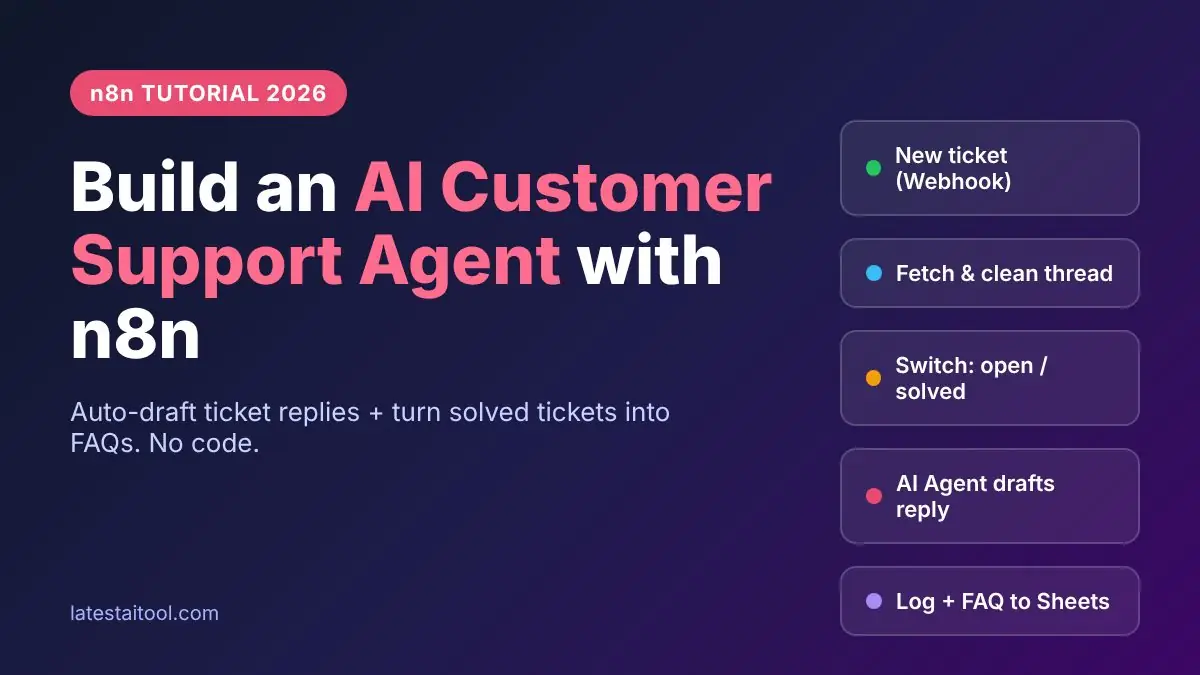
Your support inbox doesn’t sleep, but your team does. Tickets pile up overnight, the same five questions arrive in slightly different words, and by Monday morning someone is copy-pasting the refund policy for the fortieth time. That is exactly the kind of work an AI customer support agent with n8n can take off your plate. At Latest AI Tool, the AI business directory that helps you find the best AI tools for your work, we break this setup down step by step so you can get it running quickly.
In this guide I’ll walk you through how to build one step by step, with screenshots of each n8n node: the workflow itself, the prompts I’d actually use, how to keep the agent from making things up, what it costs, and the mistakes that trip people up in the first week.
By the end you’ll have a workflow that reads new tickets from Zendesk (or Freshdesk or Gorgias), drafts a grounded reply, posts it back to the ticket, logs everything to Google Sheets, and turns every solved ticket into a fresh FAQ entry. No coding background needed.
What Is an AI Customer Support Agent in n8n?
An AI customer support agent is an automated workflow that reads a customer’s message, understands what they’re asking, looks up the right answer from your own help content, and writes a reply in your brand’s voice. In n8n, that “agent” is a chain of nodes: a trigger that catches the ticket, a few steps that fetch and clean the conversation, and an AI Agent node that does the thinking.
If you’re new to the platform, start with our full explainer on what n8n is and how it works. The short version: n8n is a visual workflow automation tool, similar to Zapier, but you can self-host it for free and it has native AI nodes built on LangChain. That combination is why so many support teams pick it for this job.
The workflow we’re building does two separate jobs:
- Job 1: Reply drafting. When a ticket is opened or a customer replies, the agent writes a response and attaches it to the ticket.
- Job 2: FAQ generation. When a ticket is marked solved, a second agent reads the full conversation and writes a short question-and-answer pair you can add to your knowledge base.
The second job is the quiet hero. Every solved ticket makes your help center a little smarter, which makes the first agent’s answers better the following week.
Why Build Your Support Agent with n8n Instead of a Ready-Made Chatbot?
There are plenty of plug-and-play AI support bots out there. So why bother building your own? A few reasons came up again and again while I tested this setup:
- You own the logic. Every rule, every prompt, every escalation path is visible on the canvas. Nothing is hidden behind a vendor’s “smart routing.”
- Cost control. Self-hosted n8n Community Edition is free to run, and you pay only for the AI model tokens you use. Hosted chatbot tools often charge per resolution, which gets expensive fast.
- Works with your existing helpdesk. Your team keeps using Zendesk, Freshdesk, or Gorgias exactly as they do today. The agent simply writes into the same tickets.
- Swap models anytime. Want to move from OpenAI to Claude, or test Gemini? Change one sub-node. See our ChatGPT vs Claude comparison if you’re deciding between them.
Still weighing up platforms? Our Zapier vs n8n breakdown covers pricing and flexibility in detail. For AI agent work with branching logic, n8n usually wins.
And the timing matters. Gartner predicts that agentic AI will autonomously resolve 80% of common customer service issues by 2029. Teams that learn to build and supervise these agents now will be well ahead.
What You Need Before You Start
Gather these before you open the canvas. It’ll save you a lot of tab-switching later.
| Requirement | What it’s for | Cost |
|---|---|---|
| n8n account (Cloud or self-hosted) | Runs the workflow | Free self-hosted; Cloud from about €20/month |
| Helpdesk admin access (Zendesk, Freshdesk, or Gorgias) | Create triggers/webhooks and an API token | Your existing plan |
| AI model API key (OpenAI, Anthropic, or Gemini) | Powers the AI Agent node | Pay per use, usually cents per ticket |
| Perplexity API key (optional but recommended) | Searches your own help center for grounded answers | Pay per use |
| Google Sheets | Logs replies and FAQs for review | Free |
You can check current plan details on the official n8n pricing page. For a support workflow, one execution equals one full run of the workflow, no matter how many nodes it touches, so a ticket costs you one execution.
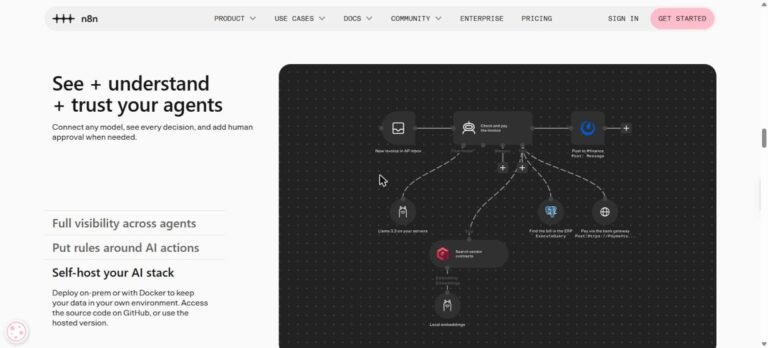
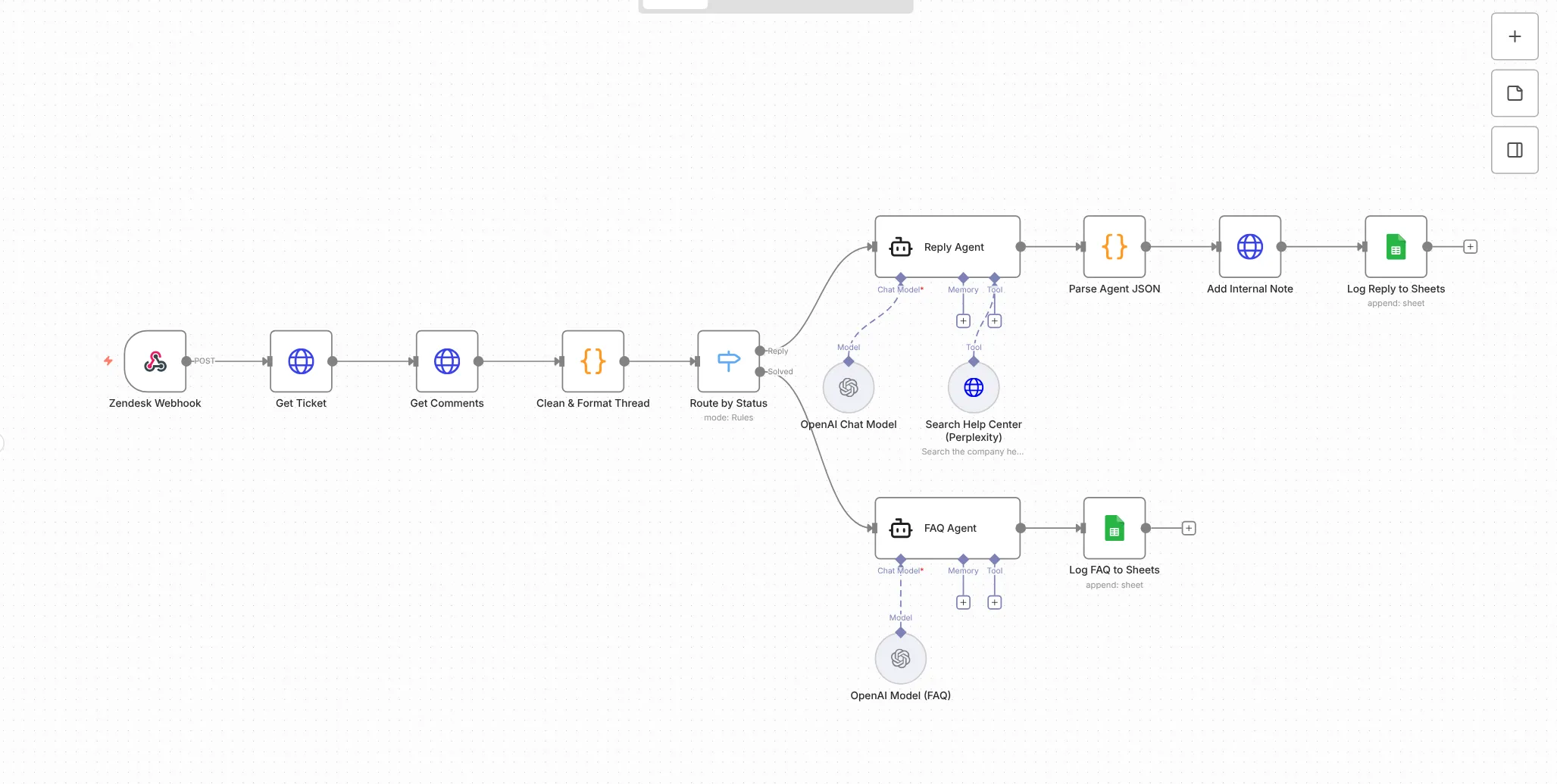
How the AI Customer Support Agent Workflow Works
Before we build anything, here’s the whole flow on one screen.

- A Webhook node receives the ticket ID from your helpdesk.
- Two HTTP Request nodes pull the ticket details and all its comments.
- A Code node removes internal notes, labels each message as “customer” or “staff,” and turns the thread into clean Markdown.
- A Switch node routes open or pending tickets to Agent 1, and solved tickets to Agent 2.
- Agent 1 drafts a reply and updates the ticket. Agent 2 writes an FAQ entry.
- Both branches log their output to Google Sheets.
Step-by-Step: How to Build an AI Customer Support Agent with n8n
I’ll use Zendesk for the examples because it has the clearest trigger system. The Freshdesk and Gorgias differences are covered later.
Step 1: Create the Webhook Trigger in n8n
Open a new workflow and add a Webhook node. Set the HTTP method to POST. n8n gives you two URLs: a test URL and a production URL. Copy the test URL for now.

Click “Listen for test event” so n8n waits for incoming data. Keep this tab open while you set up Zendesk.
Step 2: Connect Zendesk with Triggers
In Zendesk Admin Center, go to Apps and integrations → Webhooks and create a webhook pointing to your n8n test URL. Then create three triggers that call it:
- Ticket created – fires on every new ticket.
- Ticket updated by customer – fires when the customer replies.
- Status changed to solved – fires once when a ticket is closed out.
Here’s a detail that saves headaches: use the condition “Status changed to Solved”, not “Status is Solved.” The second version can re-fire every time someone edits a solved ticket, and you’ll end up with duplicate FAQs.
In the webhook body, send only the ticket ID, something like {"ticket_id": "{{ticket.id}}"}. Keeping the payload small means n8n always fetches the freshest data itself.
Create a test ticket. You should see the ID land in your Webhook node.
Step 3: Fetch the Ticket and Its Full Conversation
Add two HTTP Request nodes. Authenticate both with your Zendesk email plus API token (Basic Auth, with the username in the format you@company.com/token).
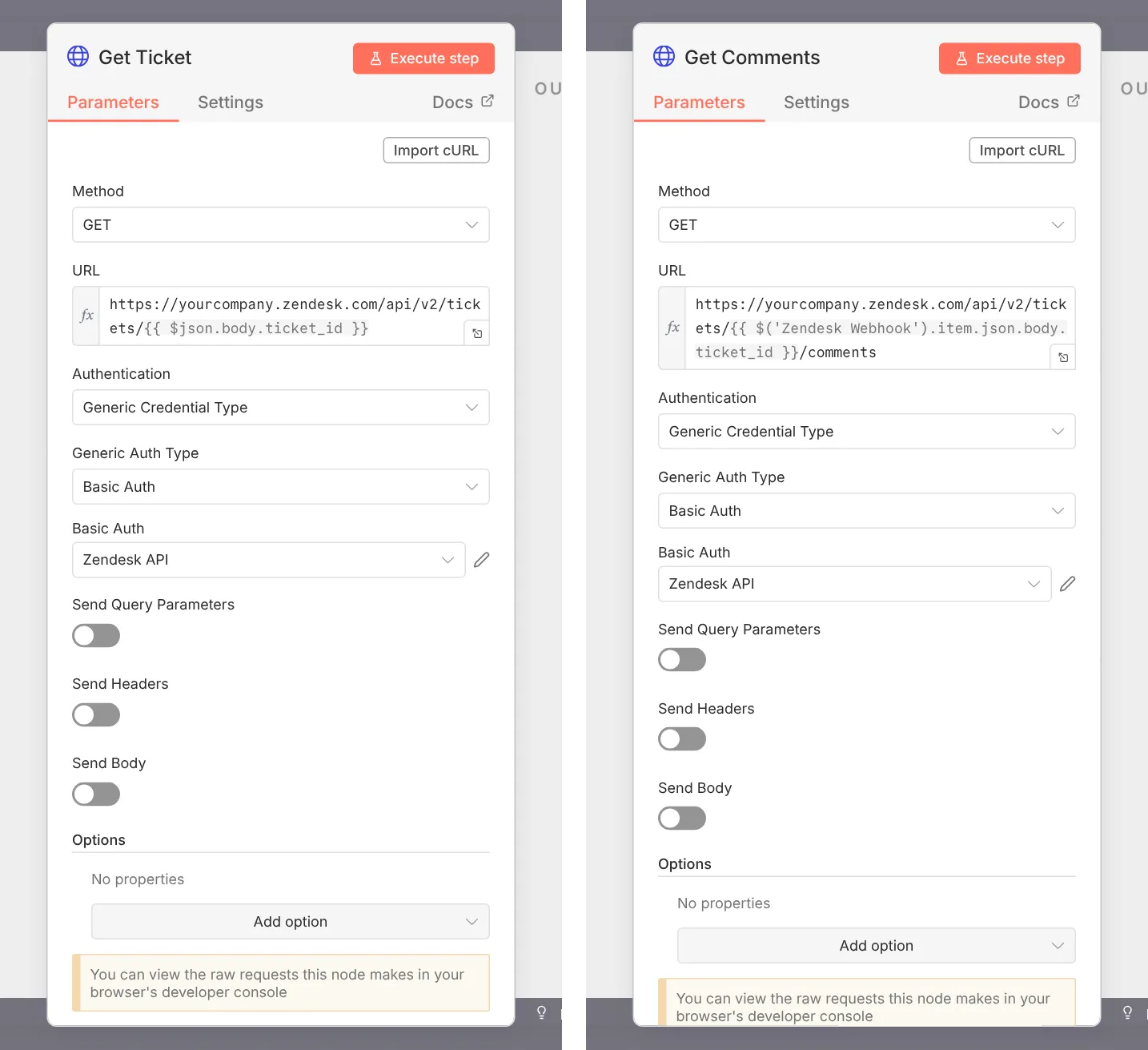
- Node A calls
GET /api/v2/tickets/{ticket_id}to get the subject, status, channel, and requester. - Node B calls
GET /api/v2/tickets/{ticket_id}/commentsto get every message in the thread.
The Zendesk Tickets API reference lists every field if you want more context, such as tags or custom fields.
Step 4: Clean and Format the Conversation
Raw API output is a messy pile of JSON. AI models read it poorly and it burns tokens. Add a Code node that does three things:
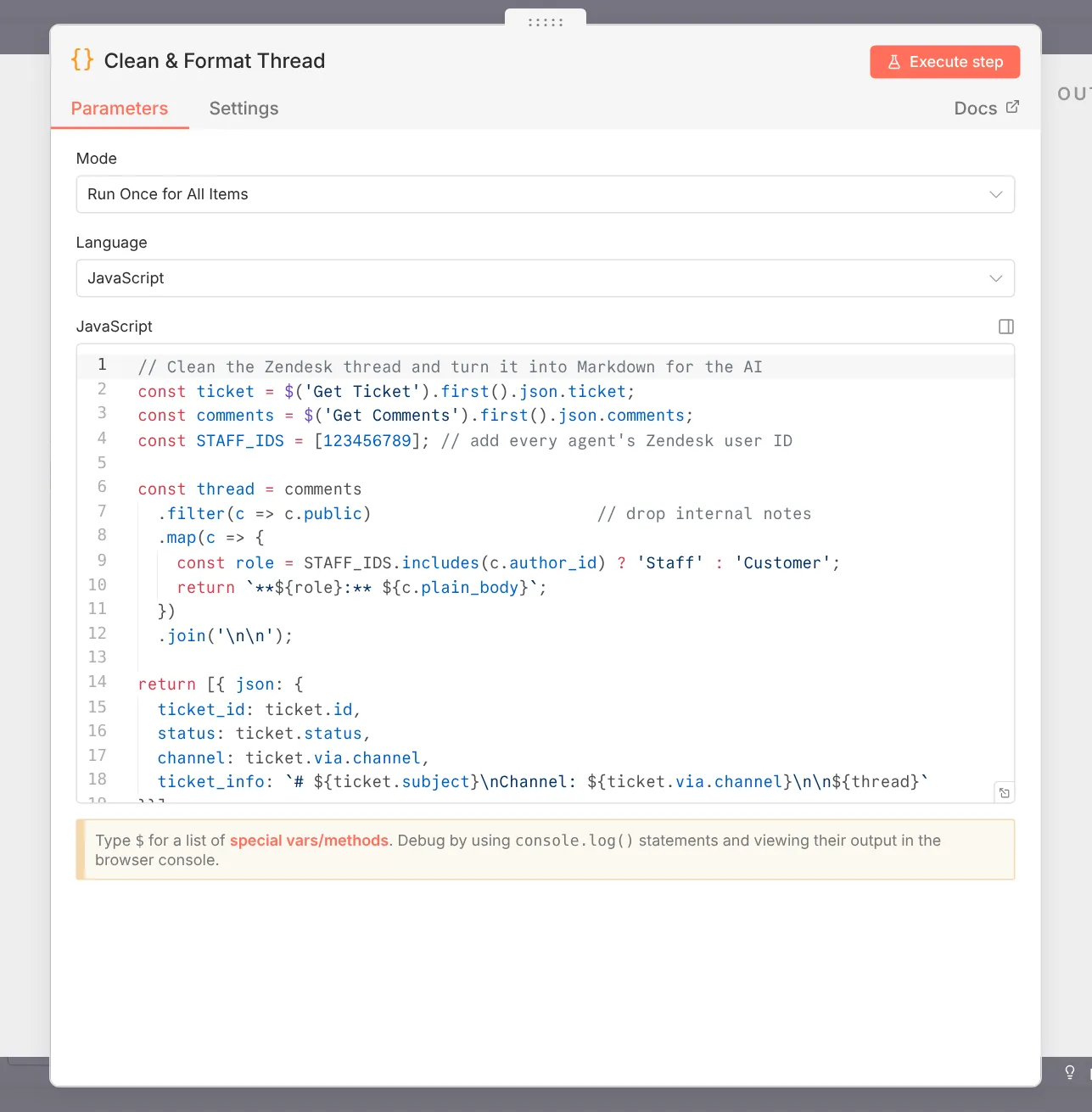
- Drops internal notes (comments where
publicis false). You never want private team chatter leaking into a customer reply. - Labels each message as Customer or Staff by comparing the author ID to a list of your agents’ IDs. If you have more than one agent, add all their IDs to the list.
- Flattens the thread into Markdown in a single variable, for example
ticket_info, with the subject, channel, and the conversation in order.
Also keep the channel (email, chat, SMS). The agent will use it to match tone and length. Nobody wants a five-paragraph email-style reply over SMS.
Step 5: Route Tickets with a Switch Node
Add a Switch node that checks the ticket status:

new,open, orpending→ output 1 → reply agentsolved→ output 2 → FAQ agent
This one node keeps the two jobs completely separate, which makes debugging much easier.
Step 6: Build the Reply Agent (Agent 1)
Now the fun part. Add an AI Agent node to output 1. The n8n AI Agent node documentation explains the options, but you need three things:

- Chat model sub-node: OpenAI, Anthropic Claude, or Google Gemini. A mid-sized model is plenty for support replies.
- A tool for looking up answers (next step).
- A clear system prompt.
Here is a system prompt structure that works well. Adapt the brand details to your business:
You are a friendly support specialist for [Brand].
You reply to customer tickets. The ticket is below in Markdown.

Rules:
- Answer ONLY using information returned by the knowledge search tool.
- If the answer is not found, say a teammate will follow up. Never guess.
- Match the channel: email = short paragraphs; chat/SMS = 1-3 sentences.
- Never promise refunds, discounts, or delivery dates.
- Sign off as "[Brand] Support".

Return JSON only:
{"body": "...", "public": false, "status": "open"}

Ticket:
{{ $json.ticket_info }}
Notice "public": false. That makes the reply an internal note, not a customer-facing message. More on why below. For more ready-to-use prompts, browse our free AI prompt library.
Step 7: Ground the Agent in Your Own Help Center
The biggest fear with any AI support agent is hallucination: confident answers that are simply wrong. The template’s clever trick is to skip building a vector database altogether.
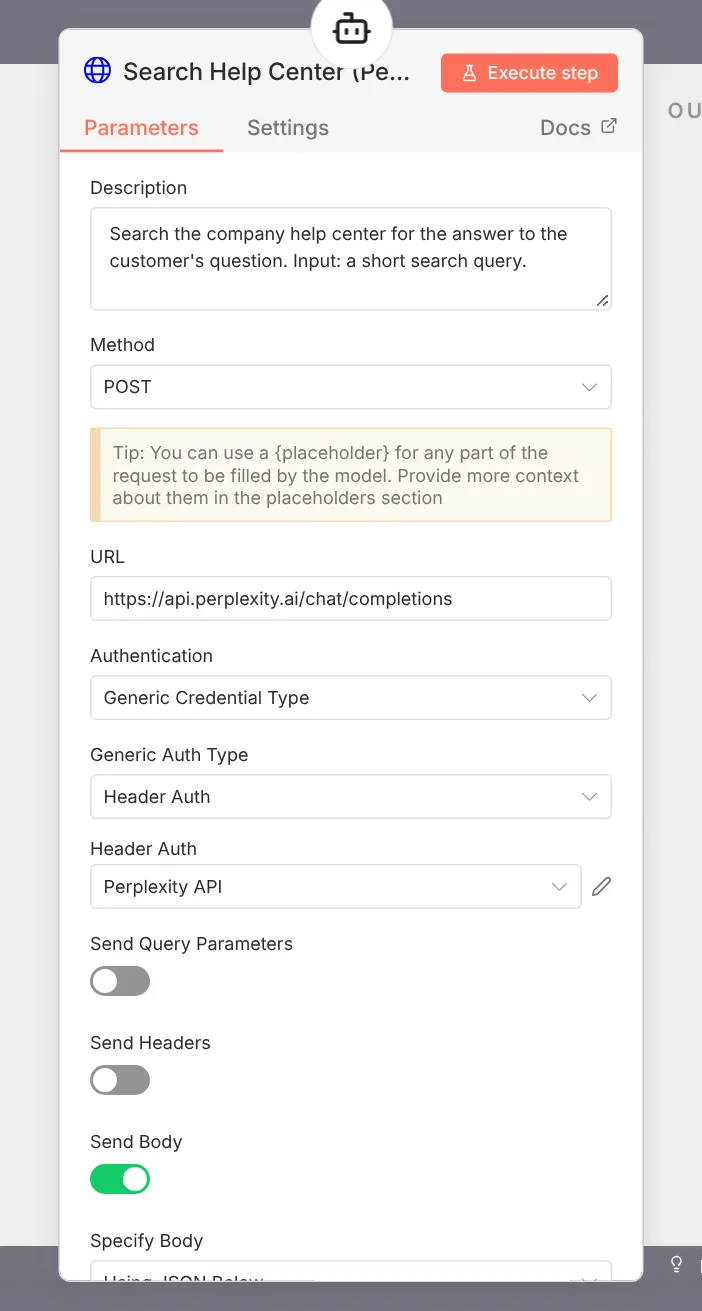
Instead, connect an HTTP Request Tool to the agent that calls the Perplexity API chat completions endpoint with a search_domain_filter set to your own domain, for example help.yourstore.com. Now every search only looks at your published help articles, so your help center becomes the single source of truth.
Why this matters: when you update a help article, the agent’s answers update too. No re-embedding, no Pinecone bills, no sync jobs. You can read more about the tool itself on our Perplexity tool page.
If you later need private data (order status, account details), add more tools: a Shopify node, a database query, or an HTTP call to your own API. The agent will decide which tool to call based on the question.
Step 8: Post the Reply Back to the Ticket
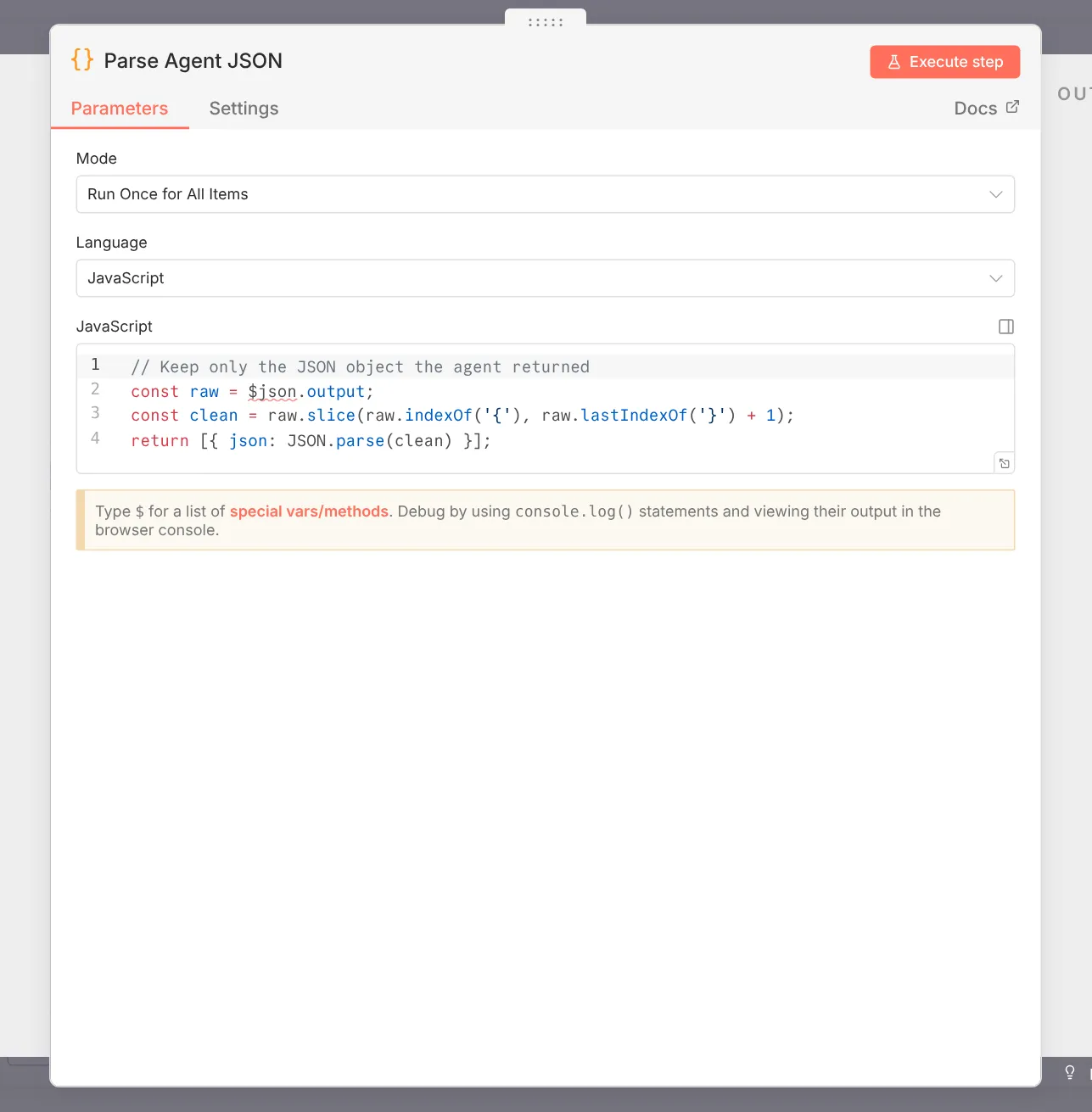
Add a Code node to parse the agent’s JSON output (models occasionally wrap JSON in extra text, so strip anything outside the curly braces). Then add an HTTP Request node:
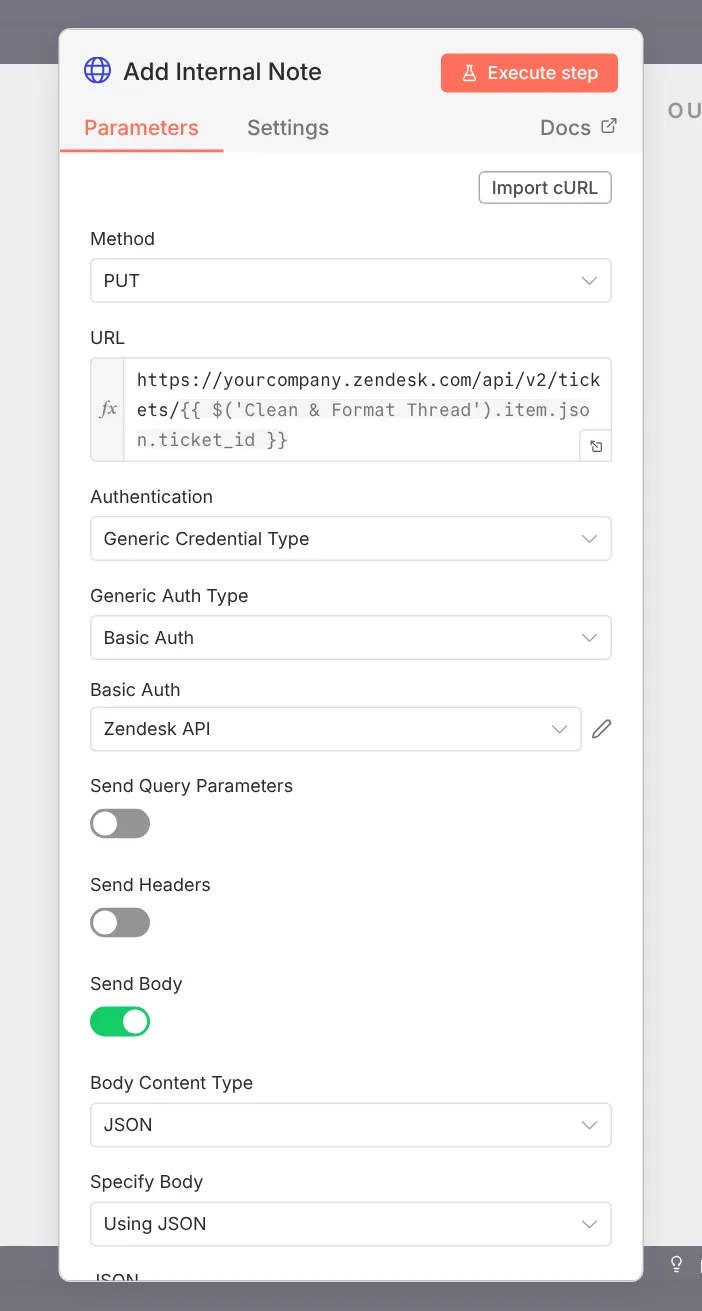
PUT /api/v2/tickets/{ticket_id}
{
  "ticket": {
    "comment": { "body": "...", "public": false },
    "status": "open"
  }
}
Your agents will now see an AI-drafted reply sitting in the ticket as a private note, ready to review, tweak, and send.
Step 9: Build the FAQ Agent (Agent 2)
On the solved branch, add a second AI Agent node. Its prompt is simpler:
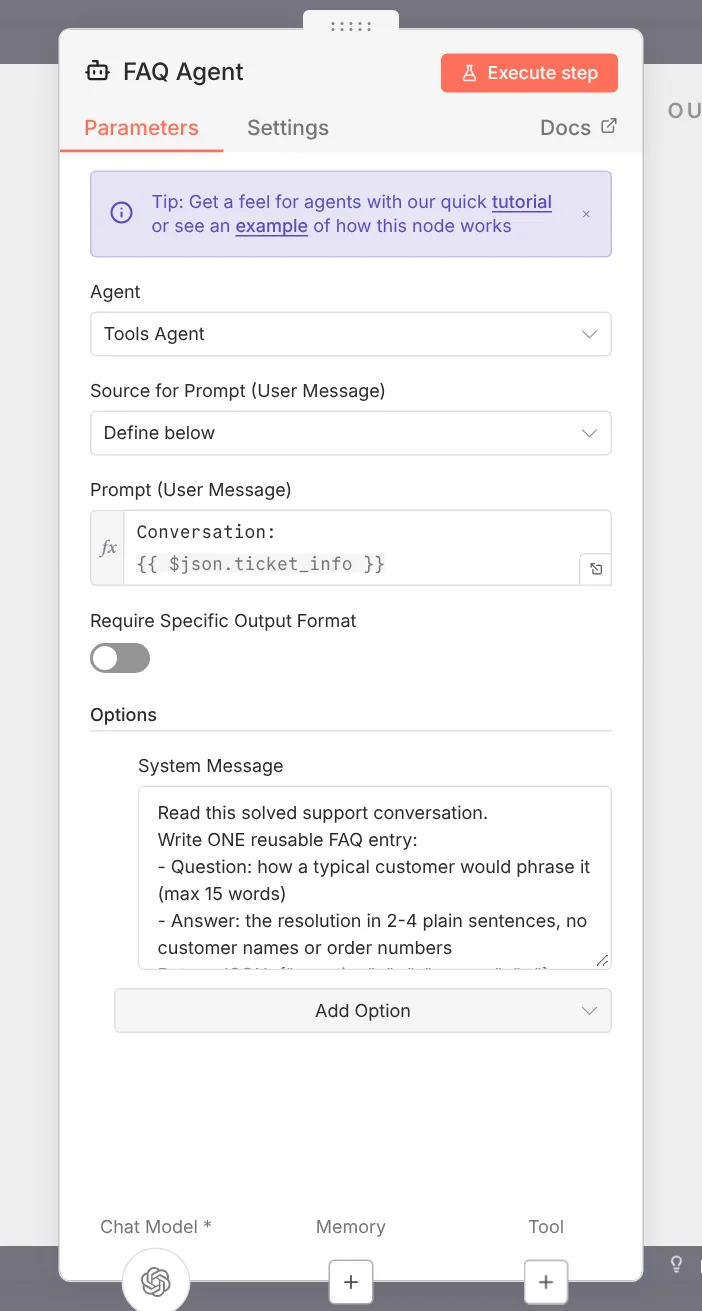
Read this solved support conversation.
Write ONE reusable FAQ entry:
- Question: how a typical customer would phrase it (max 15 words)
- Answer: the resolution in 2-4 plain sentences, no customer names or order numbers
Return JSON: {"question": "...", "answer": "..."}
That “no customer names” line is important. FAQs are public, so personal details must never slip in.
You can extend this agent to also tag the contact reason (shipping, billing, login, etc.) and push that tag back into Zendesk. After a month you’ll have real data on why people contact you.
Step 10: Log Everything to Google Sheets
Add a Google Sheets → Append Row node at the end of each branch.

- Replies tab: date, ticket ID, subject, customer message, AI reply, and a “Checked” column.
- FAQ tab: date, ticket ID, question, answer, and an “Approved” column.
Once a week, review the FAQ tab and publish the good ones to your help center. Since Agent 1 searches your help center, each approved FAQ directly improves future replies. That’s the feedback loop that makes this workflow get better over time.
Step 11: Test, Then Switch to Production
Run a few test tickets with different scenarios: a simple question, an angry customer, a question your help center can’t answer. Check that the third one produces a “teammate will follow up” response rather than a made-up answer.

When you’re happy, swap the test webhook URL in Zendesk for the production URL and activate the workflow. Forgetting this swap is the most common reason people say “it worked yesterday and now nothing happens.”
Rolling Out Safely: Internal Notes First, Public Replies Later

Don’t let the agent talk directly to customers on day one. Run it in internal-note mode for at least one to two weeks. Your human team reads every draft, edits where needed, and marks quality in the Sheet.
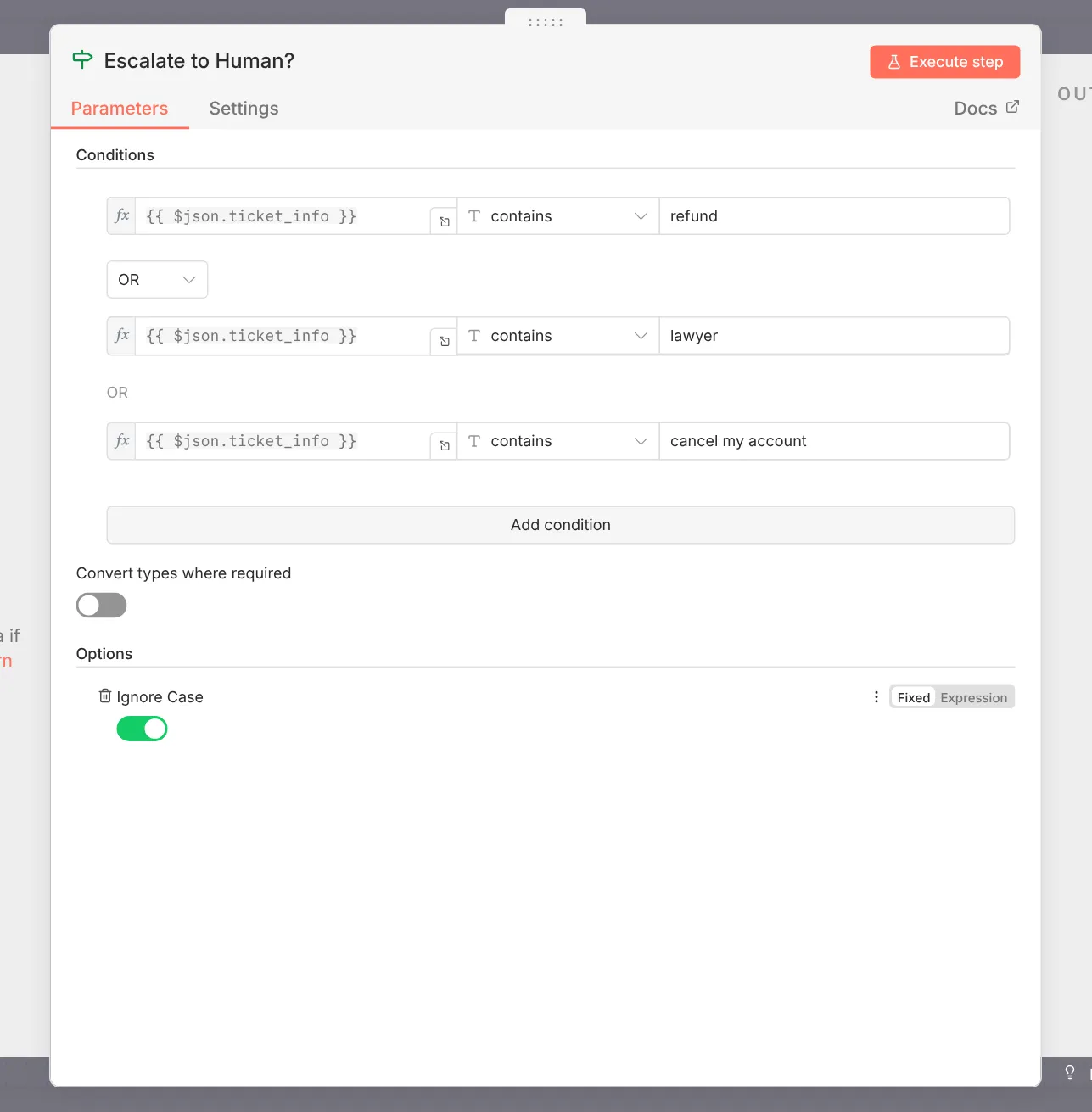
Once you see a high share of drafts being sent with little or no editing for a specific topic (say, shipping times or password resets), let the agent reply publicly for just that category. Keep anything involving refunds, legal questions, or upset customers routed to a human. A simple sentiment check in the prompt, or a separate classifier step, can handle that.
Adapting the Workflow for Freshdesk and Gorgias
The core logic stays the same across helpdesks. Only the trigger and the API calls change.

| Part of workflow | Zendesk | Freshdesk | Gorgias |
|---|---|---|---|
| Trigger | Triggers + webhook | Automation rules → “Trigger webhook” action | HTTP integration on ticket events |
| Get conversation | /tickets/{id}/comments | /tickets/{id}/conversations | /tickets/{id}/messages |
| Internal note | comment with public: false | /tickets/{id}/notes with private: true | message with internal-note channel |
| Native n8n node | Yes | Yes | Use HTTP Request |
Always double-check endpoint names in your helpdesk’s own API docs, because vendors update them over time. Gorgias is especially popular with Shopify stores, so if you’re in e-commerce it’s worth a look.
How Much Does an n8n AI Support Agent Cost?
Here’s a realistic monthly estimate for a small business handling around 1,500 tickets a month:
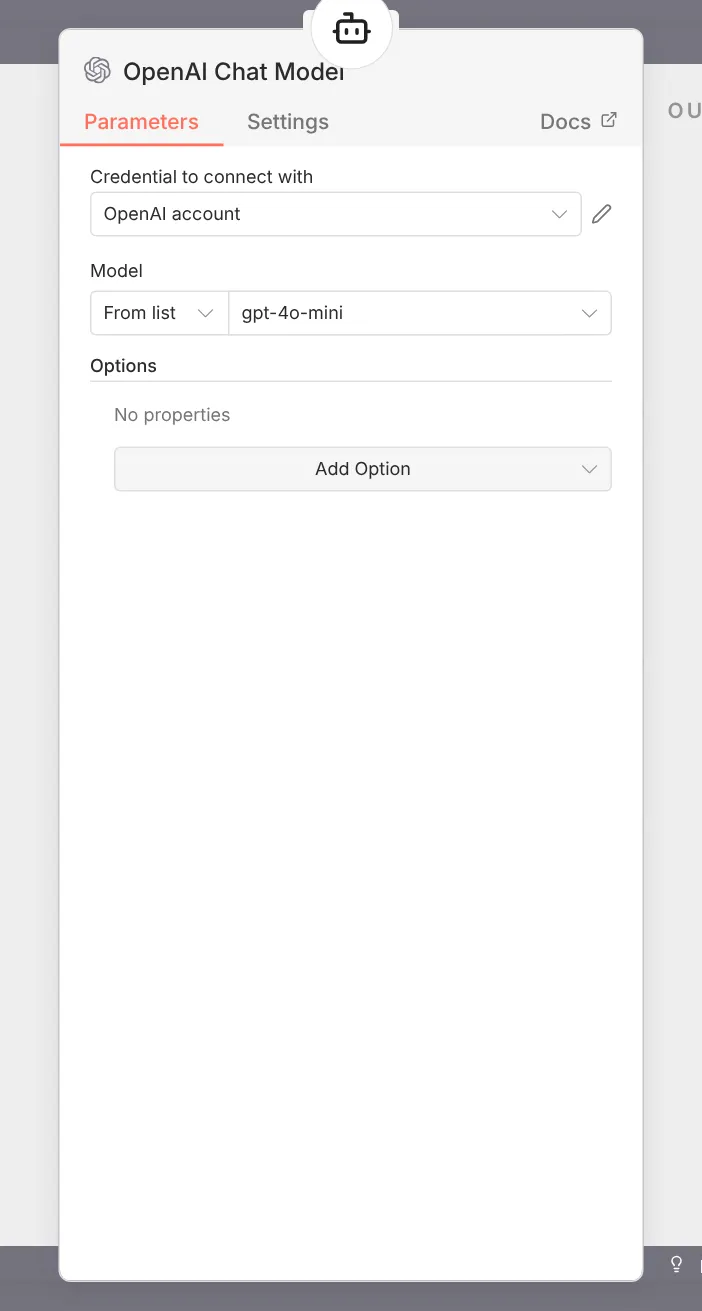
- n8n: €0 if self-hosted on a small server (you’ll pay a few dollars for the server itself), or around €20 to €50 a month on n8n Cloud Starter or Pro.
- AI model: a cleaned ticket plus a reply is usually a few thousand tokens. With a mid-tier model, that’s typically a few cents per ticket.
- Perplexity search: small per-request cost, similar range.
Compared with per-resolution pricing from many hosted AI support tools, the savings add up quickly once volume grows. The trade-off is that you maintain the workflow yourself.
Common Mistakes to Avoid
- Sending raw JSON to the model. Always clean and convert to Markdown first. Answers improve and token costs drop.
- Leaking internal notes. Filter out private comments before the AI sees the thread.
- Using “is solved” instead of “changed to solved.” You’ll get duplicate FAQ entries.
- No fallback answer. If the prompt doesn’t tell the agent what to do when it doesn’t know, it will guess.
- Going public too fast. Internal notes first. Always.
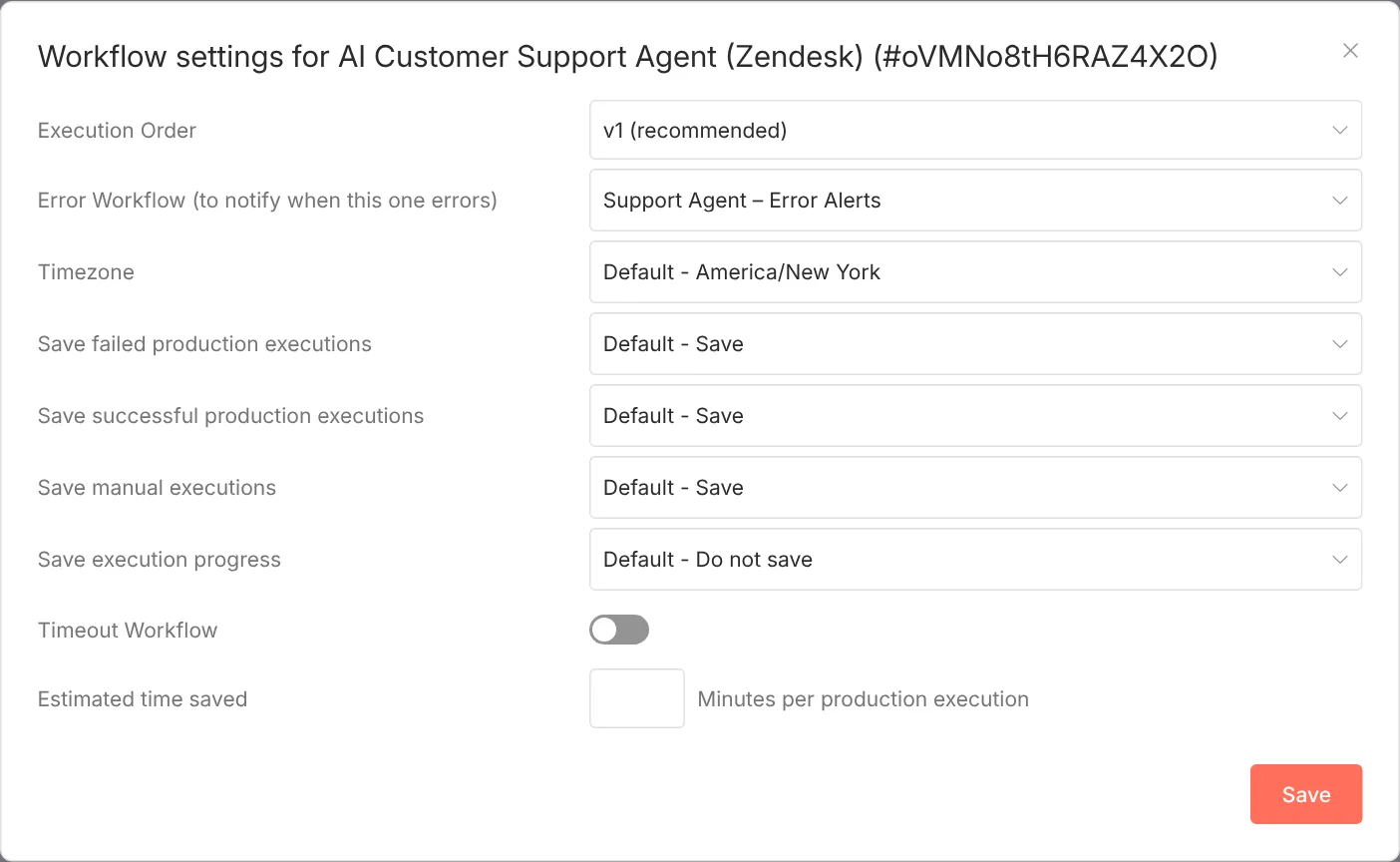
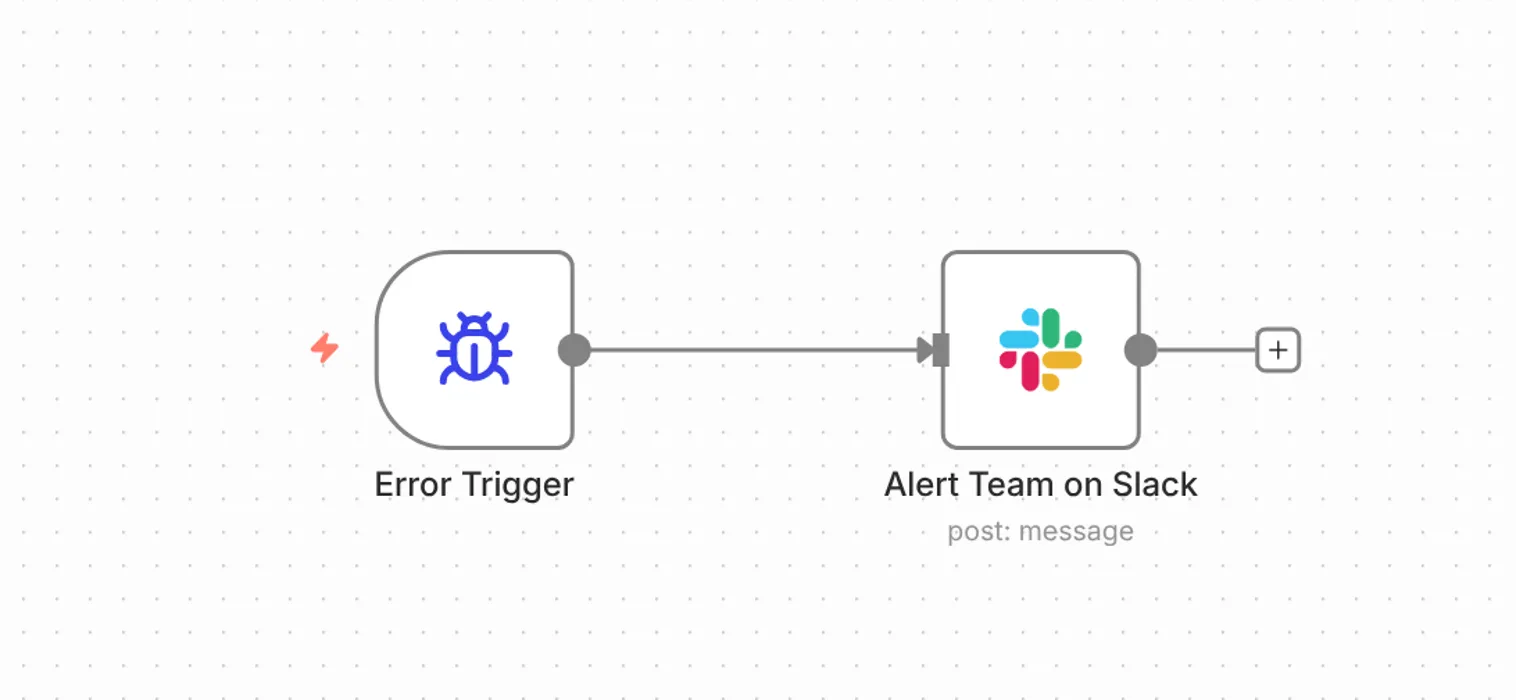
- Forgetting error handling. Add an Error Trigger workflow that pings you on Slack or email if a run fails.
- Letting the help center go stale. The agent is only as good as the articles it searches. Review the FAQ sheet weekly.
Ideas to Take Your Support Agent Further
Once the basics are running smoothly, these upgrades are worth considering:
- Multilingual replies: tell the agent to reply in the customer’s language. Modern models handle this well.
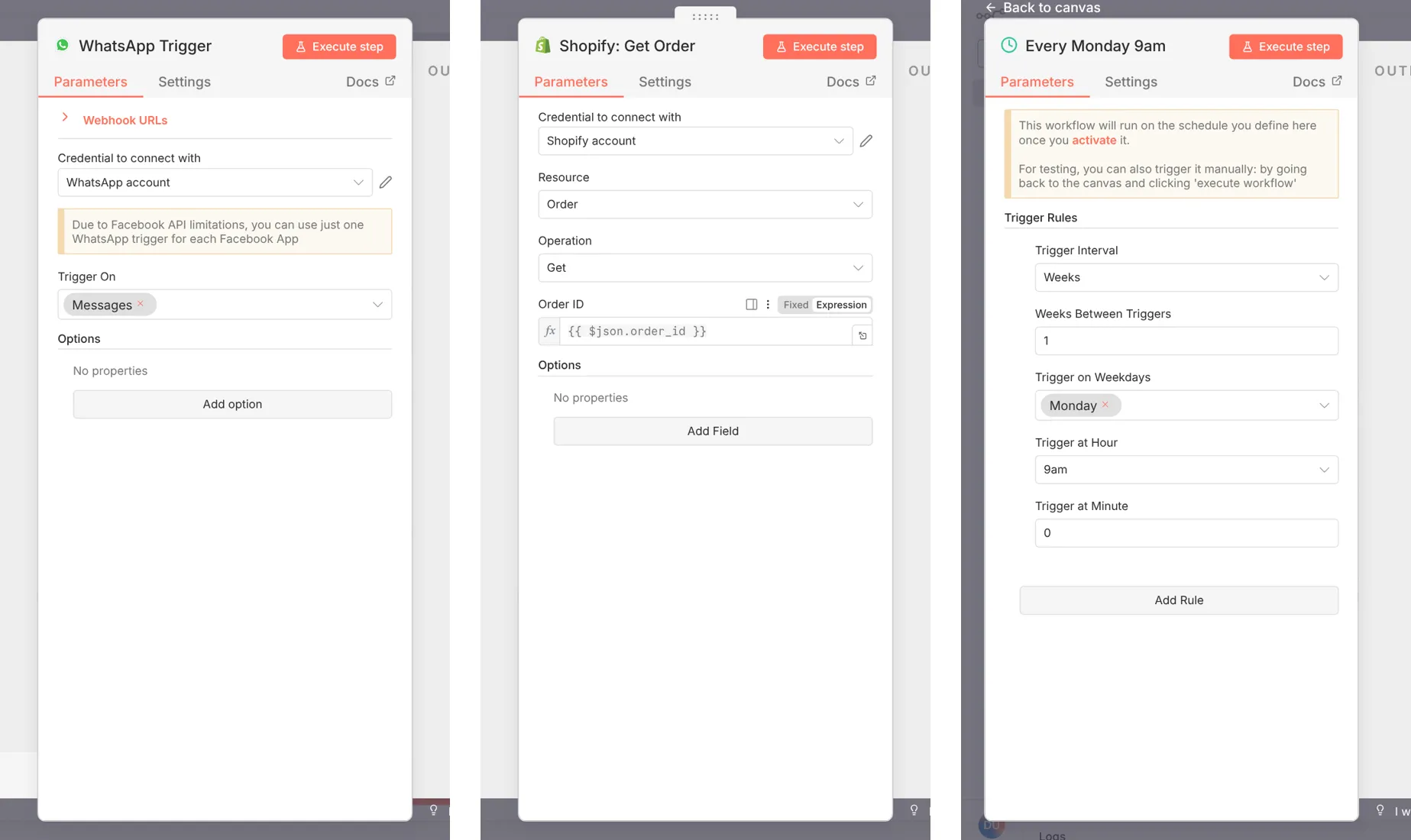
- Order lookups: connect Shopify or WooCommerce so the agent can answer “where is my order?” with real data.
- Live chat and WhatsApp: reuse the same agent with a different trigger.
- Weekly insights report: summarize contact reasons from the Sheet and email it to your team every Monday.
Looking for other tools to pair with this setup? Explore our AI tools directory or our roundup of the best AI tools for 2026.
Frequently Asked Questions
Can I build an AI customer support agent with n8n for free?
Yes. The n8n Community Edition is free to self-host, and every node in this workflow is available on the free version. You will still pay small usage fees for your AI model API and, optionally, Perplexity search.
Do I need coding skills to set this up?
No. Most steps are drag-and-drop. The one Code node can be copied from the template, and you only need to edit your agent IDs.
Which AI model works best for n8n customer support?
Any modern model from OpenAI, Anthropic, or Google works well. Choose a mid-sized model for cost and speed, and test two or three on your real tickets before deciding. Our pages on ChatGPT and Claude cover the strengths of each.
Will the AI agent reply to customers automatically?
Only if you allow it. By setting public to false, every reply is saved as an internal note for a human to review. You can enable public replies later, topic by topic.
How do I stop the agent from making up answers?
Restrict its knowledge search to your own help center with Perplexity’s domain filter, and instruct it to hand off to a human when no answer is found. Review drafts in Google Sheets during the first weeks.
Does this work with Freshdesk and Gorgias?
Yes. The logic is identical. You only change the trigger setup and the API endpoints for fetching conversations and posting notes.
Final Thoughts
Building an AI customer support agent with n8n is one of the most practical automation projects a small business can take on. In an afternoon you can have a workflow that drafts grounded replies, keeps humans in control, and quietly grows your knowledge base with every solved ticket.

Start small: internal notes only, one helpdesk, one model. Watch the drafts for a couple of weeks, fix your help articles where the agent struggles, and expand from there. If you want to learn more about the platform behind it all, visit our n8n tool review.